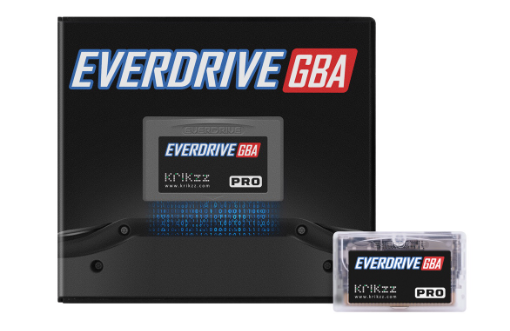
Flash carts allow gamers to play a variety of ROMs on old, retro hardware in an easy and convenient way. Ever since the 90’s, they have existed, but as time goes on, they’ve become more convenient and cheaper. The Everdrive GBA Pro is an upgrade to the Everdrive GBA Mini. It comes with a few innovative new features. The top feature is the inclusion of save states. The Everdrive GBA Mini was missing save state functionality, so it is a great improvement that we finally have them with the Everdrive GBA Pro. This Krikzz flash cart now joins the EZ Flash Omega as a GBA flash cart that supports save states.
The Everdrive GBA Pro also has the potential to play NES, GB, and Game Boy Color games with the addition of emulators. I’ve had the Pro in my hands for a couple of weeks now and am very impressed with its function and performance. The device is easy to set up, looks great, and has the premium Krikzz feel. Read on for a review of the Everdrive GBA Pro.

Installation and Setup
I’m lucky enough to own the older Everdrive GBA Mini, the predecessor to the Everdrive GBA Pro. I’ve had the older version for so long that I don’t remember setting it up. However, I have Game Boy, Game Boy Color, NES and even Game Gear games on that cart. I must have installed emulators when I first got the device. The Pro can also play games from those systems. However, you have to know how to install the emulators. It can be tricky, and some knowledge of computing makes the process easier. I won’t go through how to install the emulators, but you can find a guide here.
To set up the Pro, first download the latest firmware from the Krikzz website. You need the specific firmware for the Pro. There is advice on the ‘manual’ section for the Pro. The section will tell you the steps you need to add emulators. Incidentally, the Pro comes in a nice DS-style box, and the cart looks durable and premium. After installing the latest firmware, the first thing I did was install a Game Boy Color emulator. For some reason, I didn’t correctly install the GB emulator, so the cart plays GBC games, but not GB games. I’m sure after some messing about, I will get the GB emulator to work.
Features and Performance
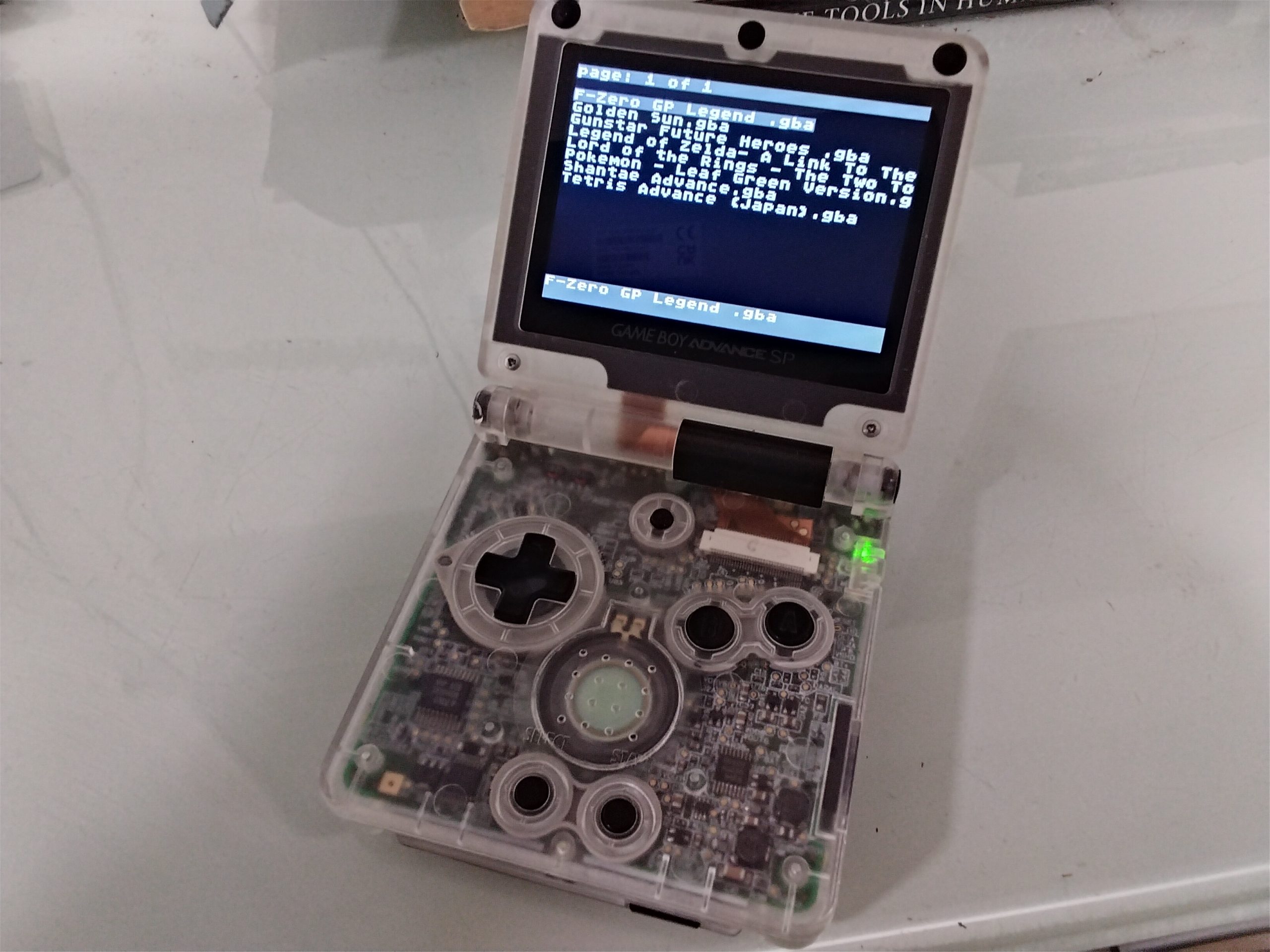
The flash cart can hold hundreds, even thousands, of games across the various platforms that it supports. With even a modest-sized micro SD card, you could have the whole GBA library on the cart. The save state feature of the Pro only works with GBA games. You hold both shoulder buttons for the menu to appear. I noticed that with one game, Shantae Advance, the save state feature didn’t work. This could be because the game is a relatively new release. It’s also worth remembering that for GB, GBC, and NES games they use a separate system for save states. That system is a bit less reliable than the GBA save state system. The GB, GBC, and NES save state system is the same one found on old GBA Everdrive.
Another new feature is the light sensor. The cartridge itself can detect any kind of light. This is relevant to the Boktai games, such as Boktai: The Sun is in your Hands. In the original game, only ultraviolet light was detectable, but the Pro can detect any kind of light. I’m not a Boktai fan, but for those that are, this is a great addition.
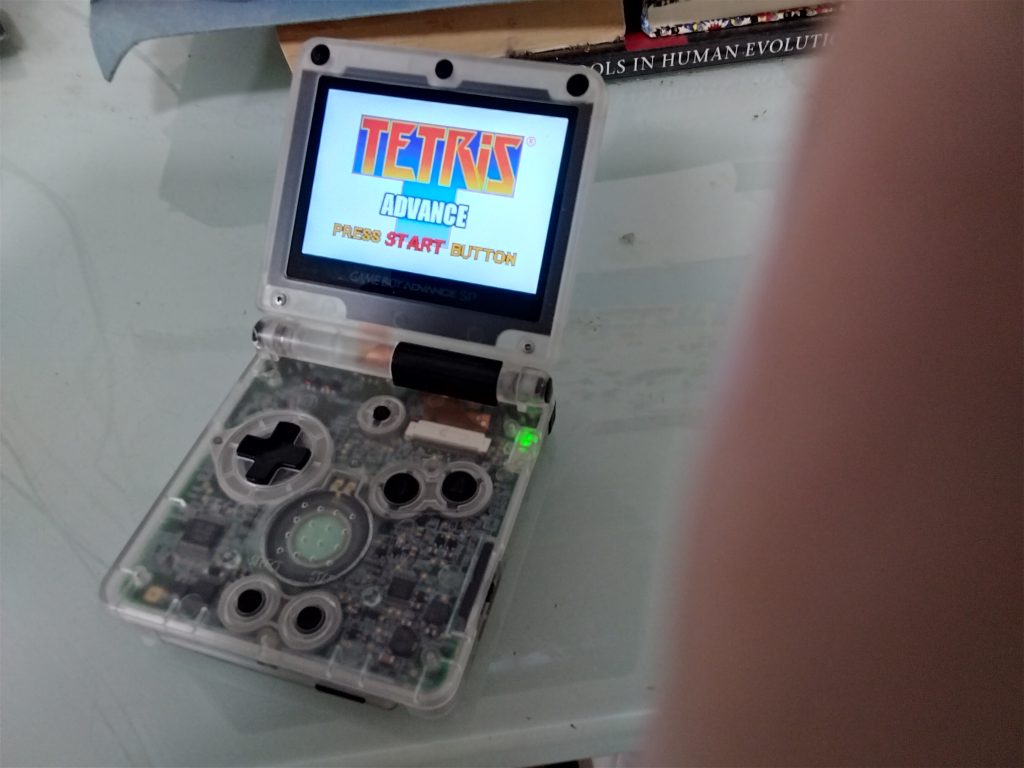
In terms of performance, the Everdrive GBA Pro plays GBA games almost flawlessly. The quality of the experience is exactly like if you had an original cart. Expect great emulation for the GB, GBC, and NES. I can’t confirm if Game Gear works, but it might, considering I had Game Gear games on this cart’s predecessor. The Pro also has a real-time clock, which is important for Pokémon games. Overall, I can’t fault the performance as everything runs great. However, as I said, save states may not work with new homebrew games.
Conclusion
Before the release of the Everdrive GBA Pro, the one flash cart that I knew supported save states for GBA games was the EZ Flash Omega. The latter cart could play other systems, including the GB, GBC, NES, and Game Gear, and had an easy-to-use menu. The Omega offered almost universal save state support. It was also cheaper than any Krikzz flash cart. However, now with the release of the Pro, the battle for the best GBA flash cart has been restarted. Both carts perform similar functions. The Omega was reliable over a long period of time. It’s yet to be seen whether the Everdrive GBA Pro can be as reliable.
Overall, the Everdrive GBA Pro is a physically great-looking cart available in charcoal black and transparent. The cart is durable and looks premium. It is designed primarily for GBA games, but you can add emulators for Game Boy, Game Boy Color, and NES. The save state support is the first time an Everdrive has had this feature for GBA games. However, I found a GBA game where the save state support didn’t work; this may be down to me using the wrong settings. In terms of which cart is more reliable, we will have to wait and see over the coming months. At the moment, the Everdrive GBA Pro is a solid flash cart, and arguably the best flash cart for the GBA.

BongoBongo123 is an avid Zelda fan who also likes the odd game of Smash. His interests in gaming are broad but he loves a good Metroidvania or action RPGs.
Is there an OS file directly to first download to the SD card? The Old series has an OS download, but the Pro does not. How is the File structure created on the card for the PRO?
I think there is. I remember i had problems with the setup as well. I can’t remember the specifics though.
Just got a GBA Pro from Krikzz. The cart will write the OS Folder structure to the SD Card the first time it is powered on. No need for an OS download package.